
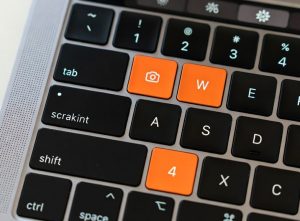
 Apple’s macOS has long offered one of the fastest ways to capture your screen through simple keyboard shortcuts. These built-in commands are reliable for everyday use, but for power users, they’re just the starting point. When combined with advanced software tools, screenshots become part of a streamlined workflow that supports productivity, creativity, and collaboration.
The mac snipping tool is more than a basic utility. With the right shortcuts, you can capture exactly what you need in seconds. Add third-party apps into the mix, and those captures can be annotated, organized, and shared instantly, turning a quick screenshot into a polished communication tool.
Mastering Keyboard Shortcuts
Speed matters when you’re working on a Mac. These shortcuts are the foundation of efficient screen capture:
- Command + Shift + 3: Grab the entire screen instantly.
- Command + Shift + 4: Select a custom portion with a drag-and-drop crosshair.
- Command + Shift + 4, then Space: Switch to window capture mode for clean grabs of individual windows.
- Command + Shift + 5: Open the screenshot toolbar, offering video recording, capture options, and save destinations.
- Command + Shift + 6: On MacBook Pro models with Touch Bar, capture its display directly.
These shortcuts are quick and versatile, but they don’t cover every scenario. That’s where specialized apps come in.
Limitations of Built-In Features
macOS provides basic annotation tools through Preview and Markup, but they can feel clunky for heavy use. Cloud integration is minimal, and managing large volumes of screenshots often requires manual organization. For professionals who rely on visuals daily, these limitations can slow down workflows.
Advanced Tools for Power Users
Third-party applications expand the screenshot experience with features designed for productivity and creativity:
- CleanShot X: A polished tool that lets you hide desktop icons, capture scrolling content, and annotate instantly. Its built-in cloud storage integration makes sharing seamless.
- Capto: Tailored for educators and content creators, Capto combines screen capture with video recording and editing. It’s ideal for tutorials, walkthroughs, and instructional content.
- Movavi Screen Recorder: A versatile option that goes beyond static images. Movavi enables video recording, audio capture, and screenshot annotation, offering a balance of simplicity and advanced functionality.
Each of these apps builds on macOS shortcuts, transforming simple captures into polished assets ready for professional use.
Workflow Integrations That Matter
The real advantage of advanced tools lies in integration. Annotations allow you to highlight details or add context without switching apps. Cloud sharing ensures screenshots can be delivered to colleagues or clients instantly. Some tools even connect directly with project management platforms, reducing friction and saving time. It’s worth remembering that software capabilities can also depend on Windows license types, which affect how easily you can upgrade or transfer certain applications across devices.
Consider a designer working on a website mockup. With CleanShot X, they can capture a scrolling page, annotate changes, and share the file directly with a team. Or imagine a teacher using Capto to record a lesson, combining screenshots with video explanations. These integrations transform screenshots into communication tools.
Balancing Speed and Flexibility
For quick grabs, macOS shortcuts are unbeatable. For detailed projects, advanced apps provide the flexibility needed to annotate, organize, and share effectively. By combining both, users can optimize every pixel they capture and ensure that screenshots serve a clear purpose in their workflow.
Conclusion
Mac users benefit from one of the most efficient screenshot systems available. The built-in shortcuts deliver speed, while third-party apps add depth and versatility. For professionals and tech enthusiasts, mastering both ensures that every screenshot is more than just a picture. Whether it’s a quick capture or a detailed tutorial, the mac snipping tool ecosystem offers the tools to get the job done with precision and ease.
By blending hardware shortcuts with advanced software, power users can transform simple screen captures into powerful productivity assets.